
ℹ️ Note: This step-by-step guide is designed to help youth members in the Scout and Venturer sections log in and manage their award progression.
1. Access the Platform
Visit the official Mahi Tahi portal at:
https://mahitahi.scouts.nz/
Note: You should have already been registered as a youth member when you first joined. If you encounter issues, please review Step 4 below.
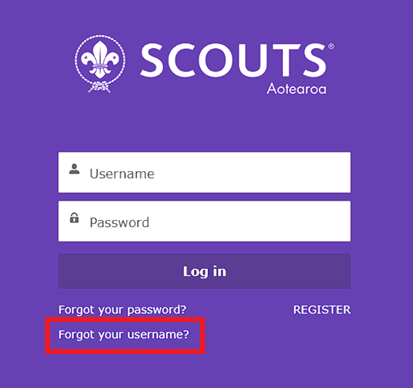
2. Find Your Username
Your username follows a specific format: a unique number starting with an ‘S’ followed by the domain extension (e.g., S123456@mahi.tahi).
If you aren’t receiving the weekly emails, please ask a parent or guardian to log into their account to update your youth member contact profiles. If they are locked out, they can request an updated account tracking link directly from a section leader.
3. Password Reset Requirements
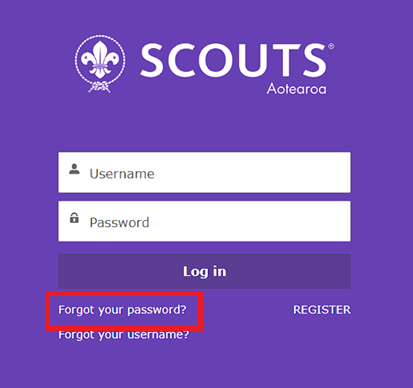
If you need to reset your password, click the ‘Forgot your password’ link.
4. Incomplete Initial Registrations
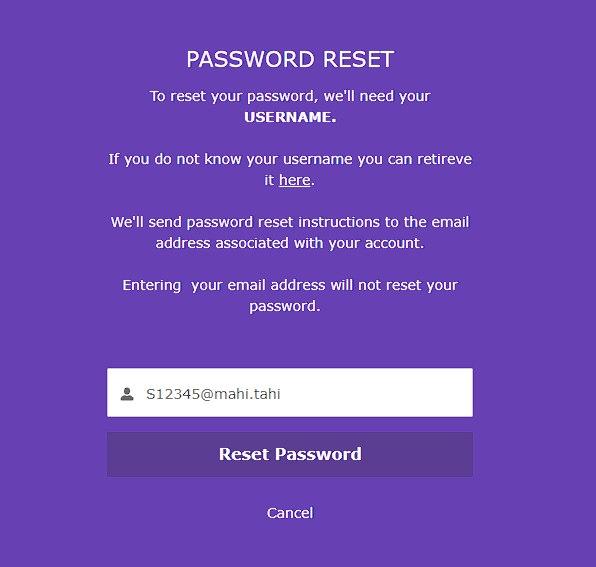
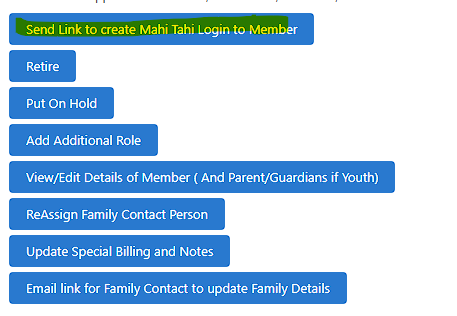
If you never completed your portal account setup when first joining, leaders can quickly dispatch a new link via the Edit/View Member dashboard inside Mahi Tahi.
You can identify this specific issue if you aren’t receiving automatic automated lookup reminders or password reset links. Note that reset receipts can take 10–20 minutes to process through national servers, so check your spam/junk folders while you wait!
5. Navigating Your Dashboard
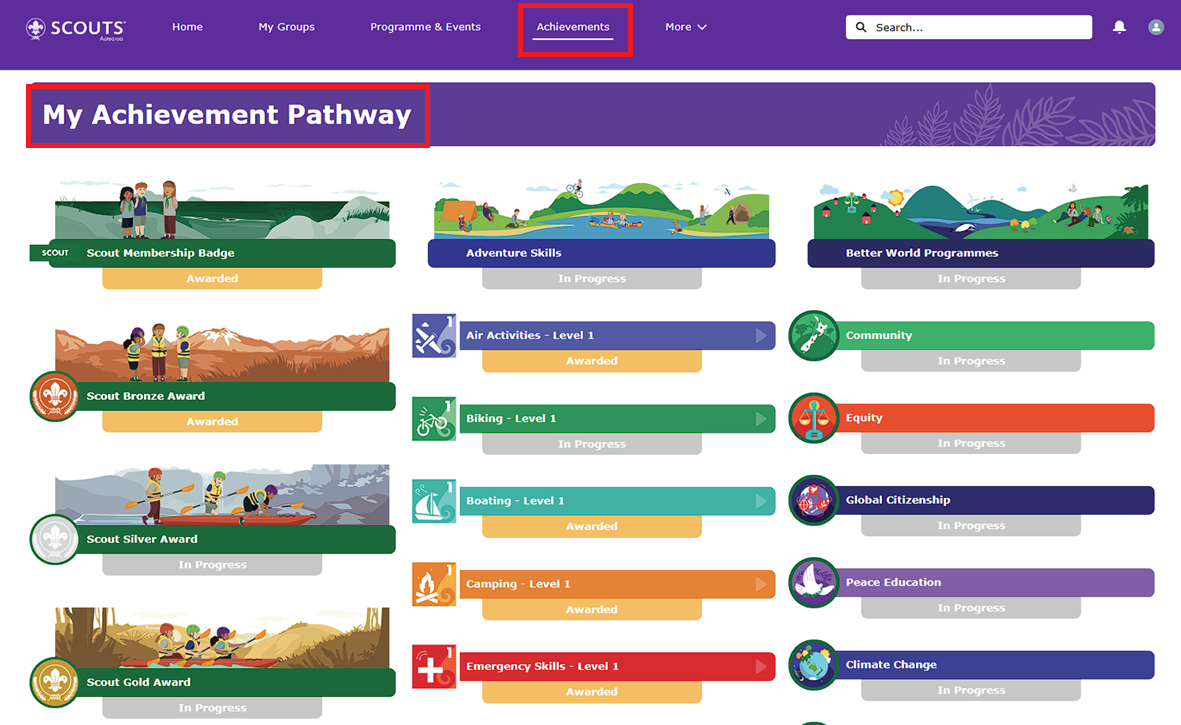
Once successfully authenticated as a youth member, navigate to the Achievement tab to see your core badge tracking metrics layout:
6. Automatic Meeting Approvals
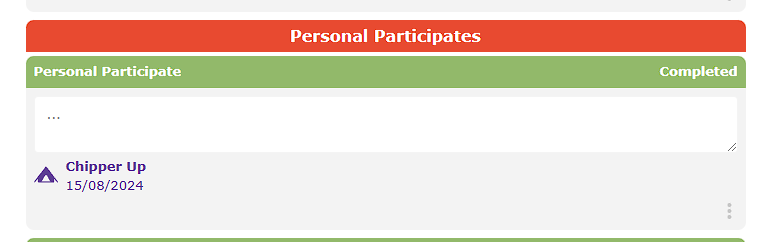
Inside your Bronze, Silver, and Gold award streams, you will notice certain **Participate** boxes sign off automatically. These fields are directly tied to leadership team roll calls during regular weekly section nights.
Weekly programs also routinely sync off whole Adventure Skills or Better World sub-elements. You are encouraged to submit extra external event logs for points validation if they align with community goals (such as beach cleanups, community breakfasts, or service helper shifts).
7. Submitting Assists & Leads
You are responsible for submitting all Assist and Lead tasks manually after confirming with your section leader what qualifies for your specific award target.
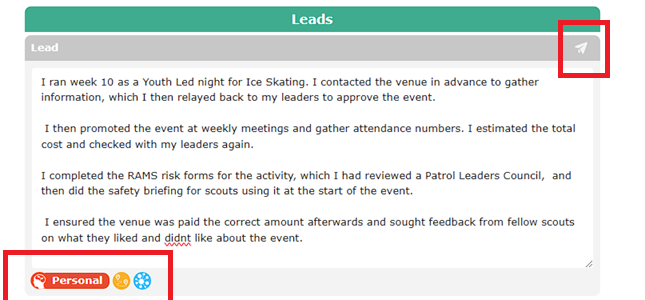
To drop an activity down for verification, write a clear summary outlining your planning steps, execution dates, and a short personal reflection on how it went. Specify if the target area was Personal, Community, or Adventure focused, then click the paper airplane icon in the top right corner to submit it.